Connect Payload CMS
Give Tallpine limited access to one Payload CMS site, map its content fields, and save an access-checked publishing destination.
Tallpine connects directly to the public REST API of a Payload 3.x project, whether it runs on Payload Cloud or is self-hosted on your own infrastructure. You do not need a Tallpine plugin, receiver service, SDK, or custom route in your website. Your existing frontend can keep reading from Payload in the same way it does today.
Safe setup: Save and check access checks authentication, collection reachability, and mapping format without creating an Article or uploading an Image.
The Payload screenshots in this guide come from a working compatibility example. Collection labels, roles, and field names can differ in your project; the behavior and mapping requirements are what matter.
Before You Begin
Have these ready:
- A deployed Payload CMS 3.x project with an HTTPS root URL that Tallpine can reach.
- Access to the current Payload collection configuration and Payload Admin so you can verify fields, access rules, and a dedicated user.
- The slugs for your auth, Article, and upload collections, such as
users,posts, andmedia. - The format stored by the Article body field: Payload Lexical, HTML, or Markdown.
- Your scope model: one Payload site, one automatically assigned tenant, or one explicit tenant relationship.
- Durable storage for the upload collection. Tallpine sends Image bytes directly to Payload rather than keeping destination media on a temporary URL.
Payload's official guides explain its REST collection routes, API-key strategy, draft workflow, and upload collections. Use the documentation for the Payload version you have deployed.
1. Check Your Payload Collections
Tallpine uses one auth collection, one Article collection, and one upload collection. The names can differ from the examples below. What matters is that the configured user can reach them through Payload's REST API.
| Collection | Example | What it needs |
|---|---|---|
| Auth | users | API-key authentication enabled for a dedicated publishing user. |
| Article | posts | Writable title, slug, body, workflow status, source identity, revision sequence, and revision hash fields. |
| Upload | media | File uploads plus writable Image source, digest, and any required alt or caption fields. |
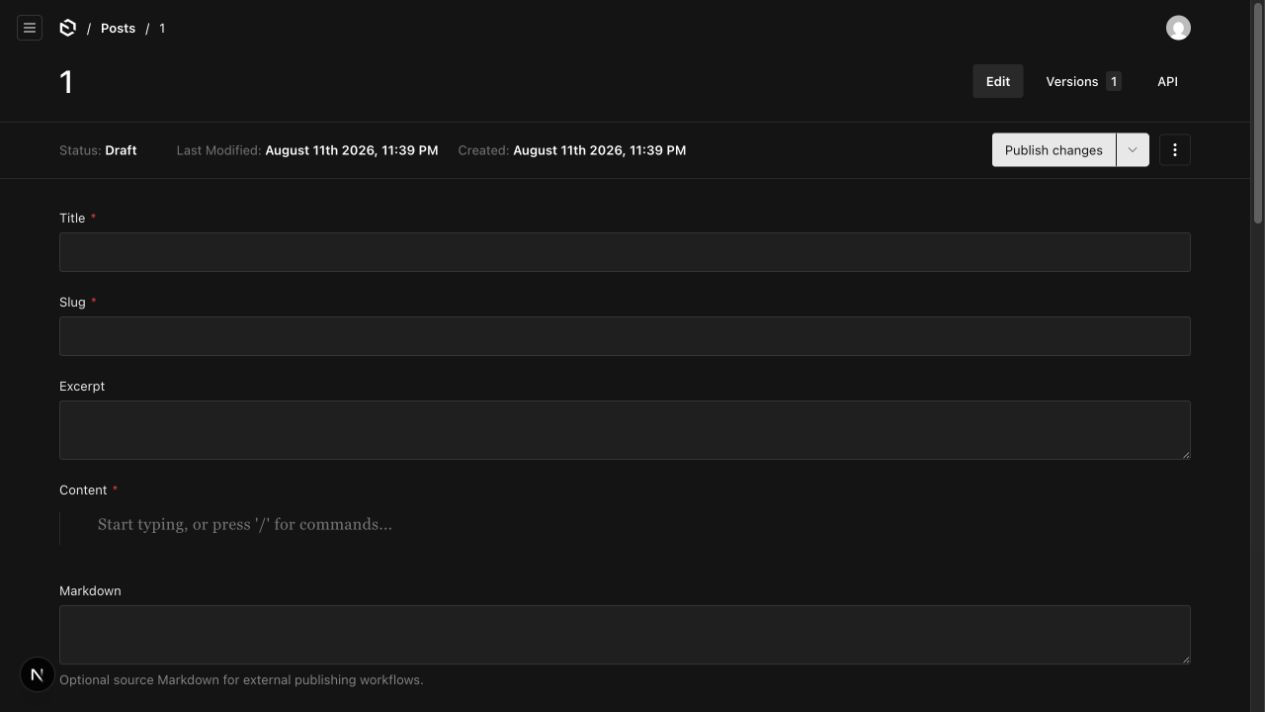
Enable Payload drafts for the Article collection so its _status field accepts published. Source and revision fields should be text fields. The revision sequence receives a positive decimal string, and the revision hash receives a value shaped like sha256: followed by 64 lowercase hexadecimal characters.
Choose One Identity Layout
Tallpine supports a compact composite identity or separate source fields. Choose the layout your deployed schema actually enforces. Do not mix the two layouts only to fill every form field.
Composite identity
- Fields: a common Article mapping uses
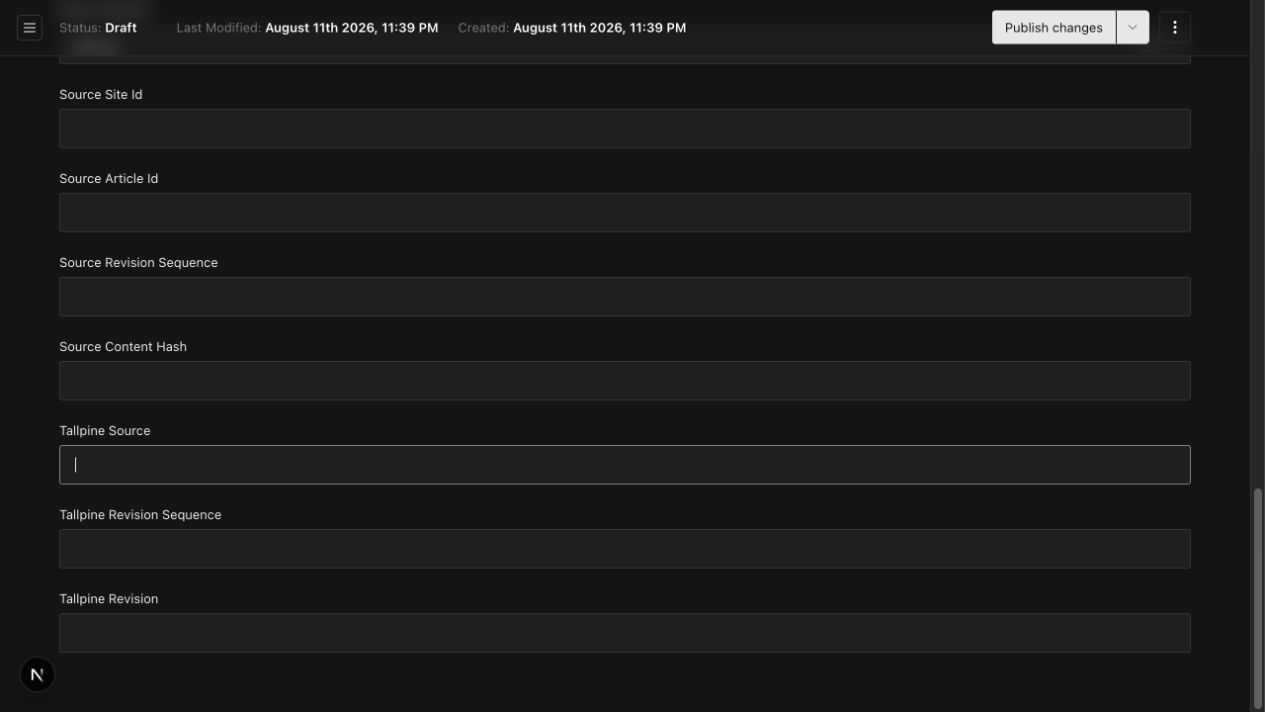
tallpineSource,tallpineRevisionSequence, andtallpineRevision. Media commonly usestallpineSourceandtallpineDigest. - Values: Tallpine writes the full Article source key, such as
tallpine:<site-id>:<article-id>. Leave Source system and Site ID blank. - Uniqueness: the Article source is unique inside the target site or tenant. The Media source and digest pair identifies one upload in the same scope.
Split identity
- Fields: use separate source system, Site ID, Article ID, revision sequence, revision hash, Media source, and Media digest fields. Your field names can follow your existing schema.
- Values: Tallpine writes
tallpine, its stable Site ID, and the stable Article or Image ID in separate fields. Configure Source system and Site ID together. - Uniqueness: the site or tenant scope, source system, Site ID, and Article ID form one unique key.
Confirm Media Upload Behavior
- Use a Payload upload-enabled collection. Tallpine sends one file plus its mapped metadata through Payload's standard multipart REST request.
- The collection must return a stable record ID and a durable destination URL after the upload is saved.
- Tallpine can send up to six PNG, JPEG, WebP, or GIF Images per Article, with a 10 MiB limit per Image and 60 MiB total. Your Payload project may enforce tighter limits.
- Apply the same site or tenant access rule to Articles and Images.
Use plain field names. Tallpine can map a field such as
metaTitle, but it cannot map a nested path such asseo.title. Leave an optional mapping blank when your schema does not have a compatible flat field.
2. Create a Dedicated API-Key User
Payload API keys belong to individual records in an auth collection. Enable auth: { useAPIKey: true } on that collection, then create a separate service user for this Connection. Do not reuse a personal administrator identity.
- In Payload Admin, open the auth collection and create a user for Tallpine. Use a dedicated service email address on your own domain.
- Give the user the lowest role that can read, create, and update the Article and upload collections. Do not use a super-admin account.
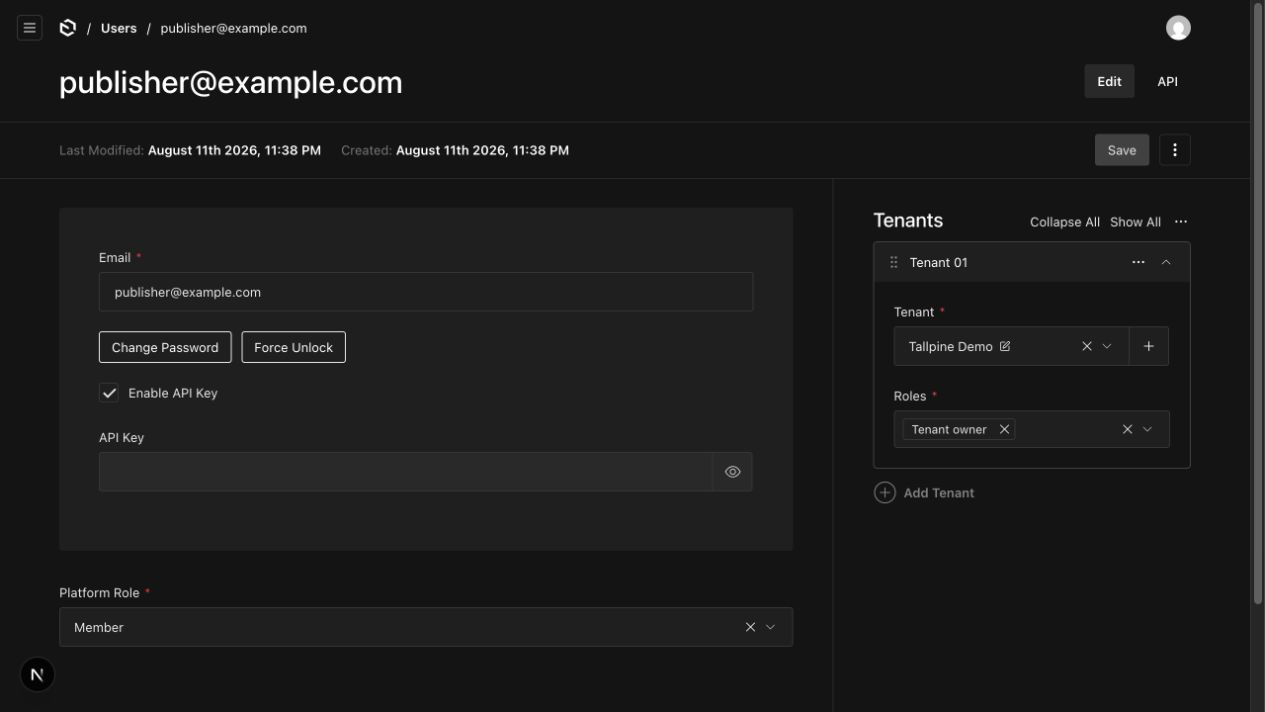
- If the project is multi-tenant, assign exactly one tenant membership. Confirm your access rules prevent this user from writing into another tenant.
- Enable API-key access, save the user, and copy its API key.
- Store the key in a password manager or another approved secret store. Do not put it in a screenshot, ticket, source file, or shared note.
Role names differ between Payload projects. Verify the permissions your access code actually enforces instead of assuming a role named “author” or “editor” has the right scope.
Choose the Tenant Mode
- No tenant relationship: for a single-site Payload project, leave Tenant field and Tenant ID blank. Confirm the service user's collection access rules allow only the required actions.
- One automatic tenant: if the dedicated user belongs to exactly one tenant and Payload automatically assigns it to new Articles and Images, leave Tenant field and Tenant ID blank in Tallpine.
- Explicit tenant relationship: if Payload requires the caller to send the relationship, enter the flat relationship field, usually
tenant, and the current tenant record ID.
Do not use automatic tenant selection when the service user belongs to more than one tenant. Confirm the same tenant rule applies to both the Article and upload collections.
3. Enter the Connection in Tallpine
- Open the target Tallpine Site.
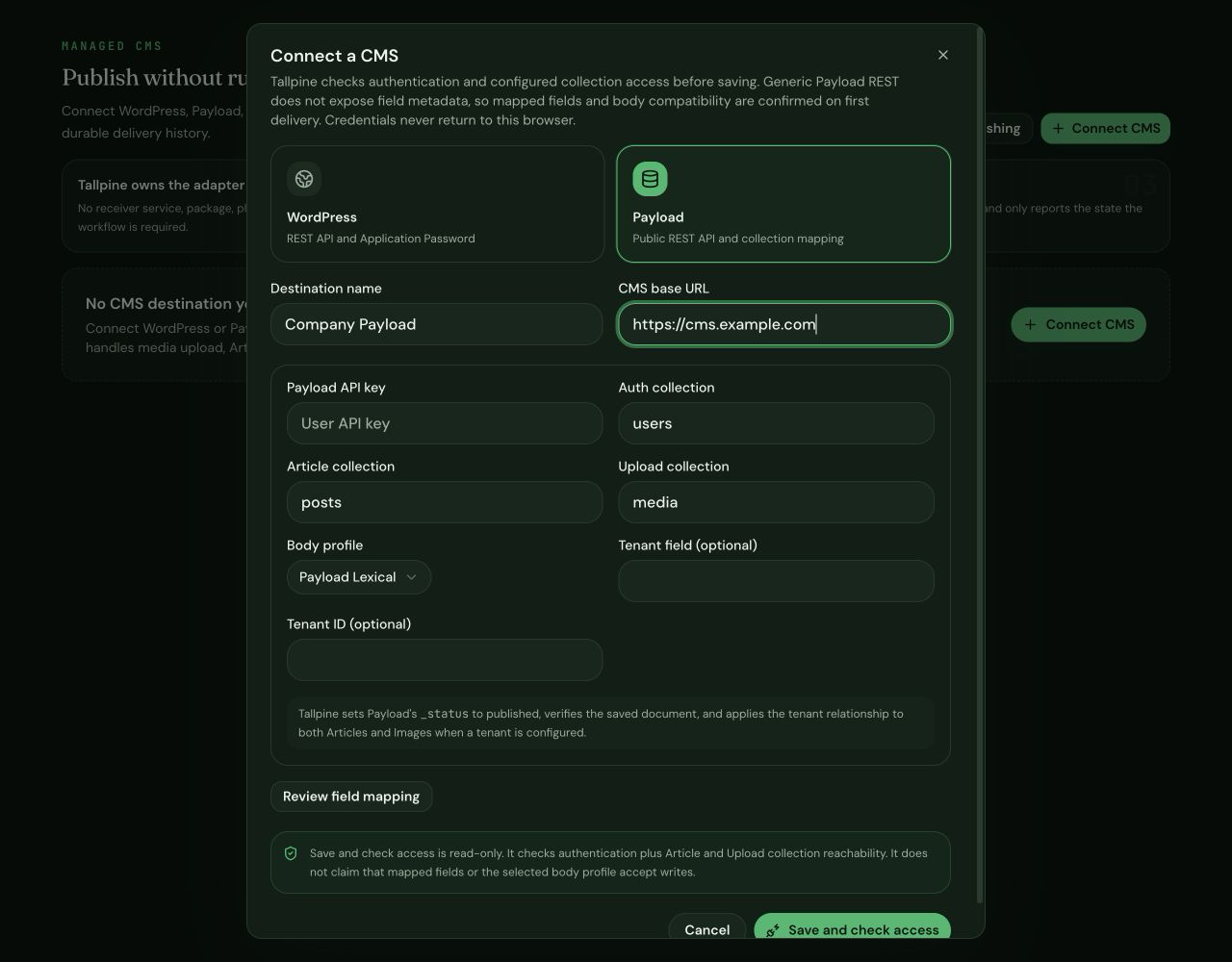
- Open Connections and choose Connect CMS.
- Select Payload.
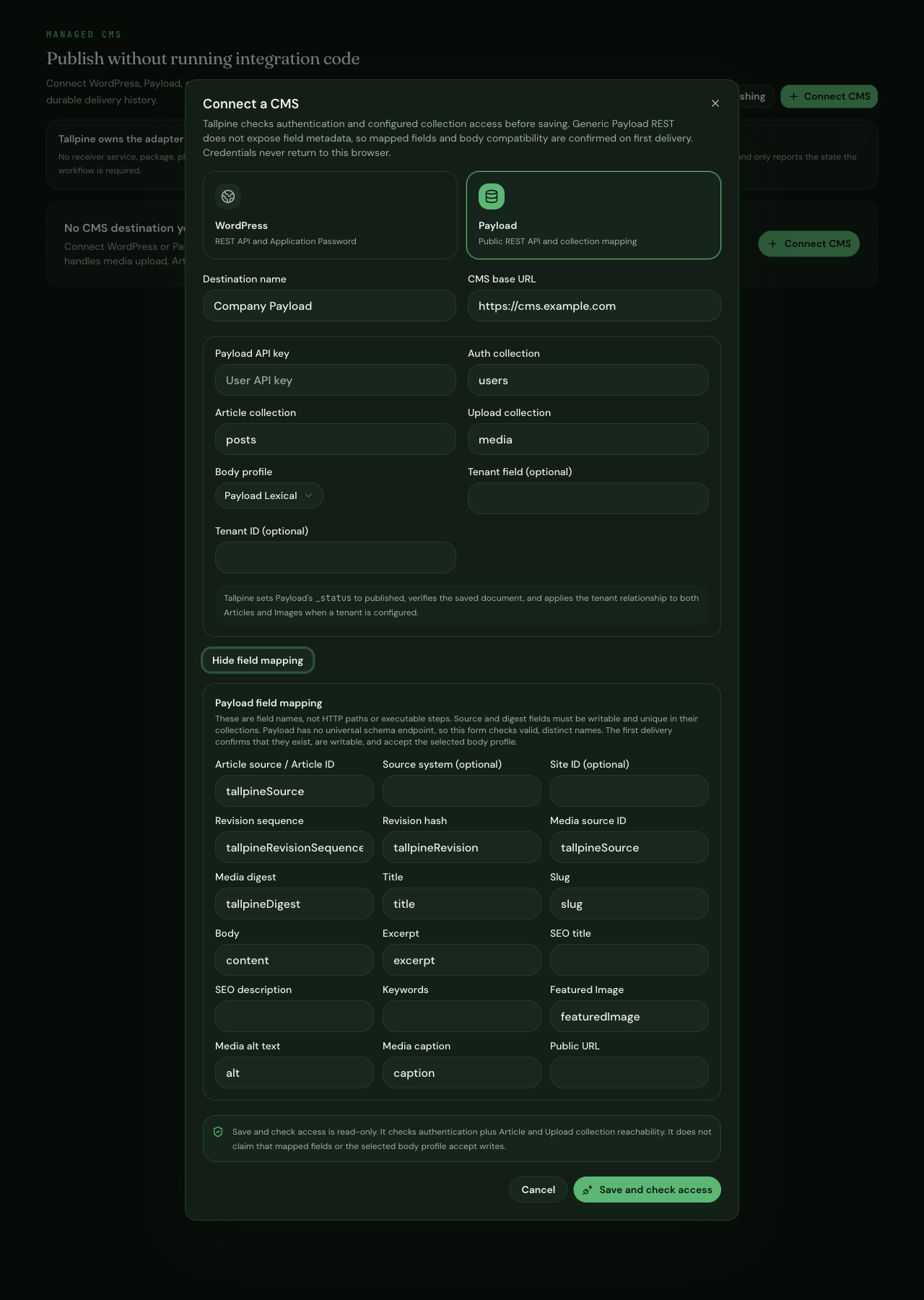
- Enter a destination name that identifies the site, such as “Company Payload.”
- Enter the root CMS URL, such as
https://cms.example.com. Do not add/adminor/api. - Paste the dedicated API key, then confirm the auth, Article, and upload collection slugs.
- Choose the body profile that matches the body field: use Payload Lexical for a Payload rich-text field. It includes table support. You can also choose HTML field or Markdown field for compatible string fields.
4. Review the Field Mapping
Choose Review field mapping. Compare every visible name with the current Payload collection definitions. Do not accept a default just because it looks familiar.
- Confirm the Article source, revision sequence, revision hash, Media source, and Media digest fields first.
- Confirm title, slug, body, excerpt, Featured Image, alt, and caption fields where your schema supports them.
- Leave SEO title, SEO description, Keywords, or Public URL blank when the Payload schema stores them only inside a nested group.
- Leave Source system and Site ID blank unless your Payload schema has separate fields for both. Configure both together or neither one.
5. Save and Check Access
- Choose Save and check access. Tallpine checks the API key, reads the configured collections, and checks that mapped names are valid and distinct.
- Payload does not expose one universal schema endpoint, so setup cannot prove that every mapped field exists and is writable. Tallpine confirms those writes during the first delivery and reports any mismatch without claiming the Article was published.
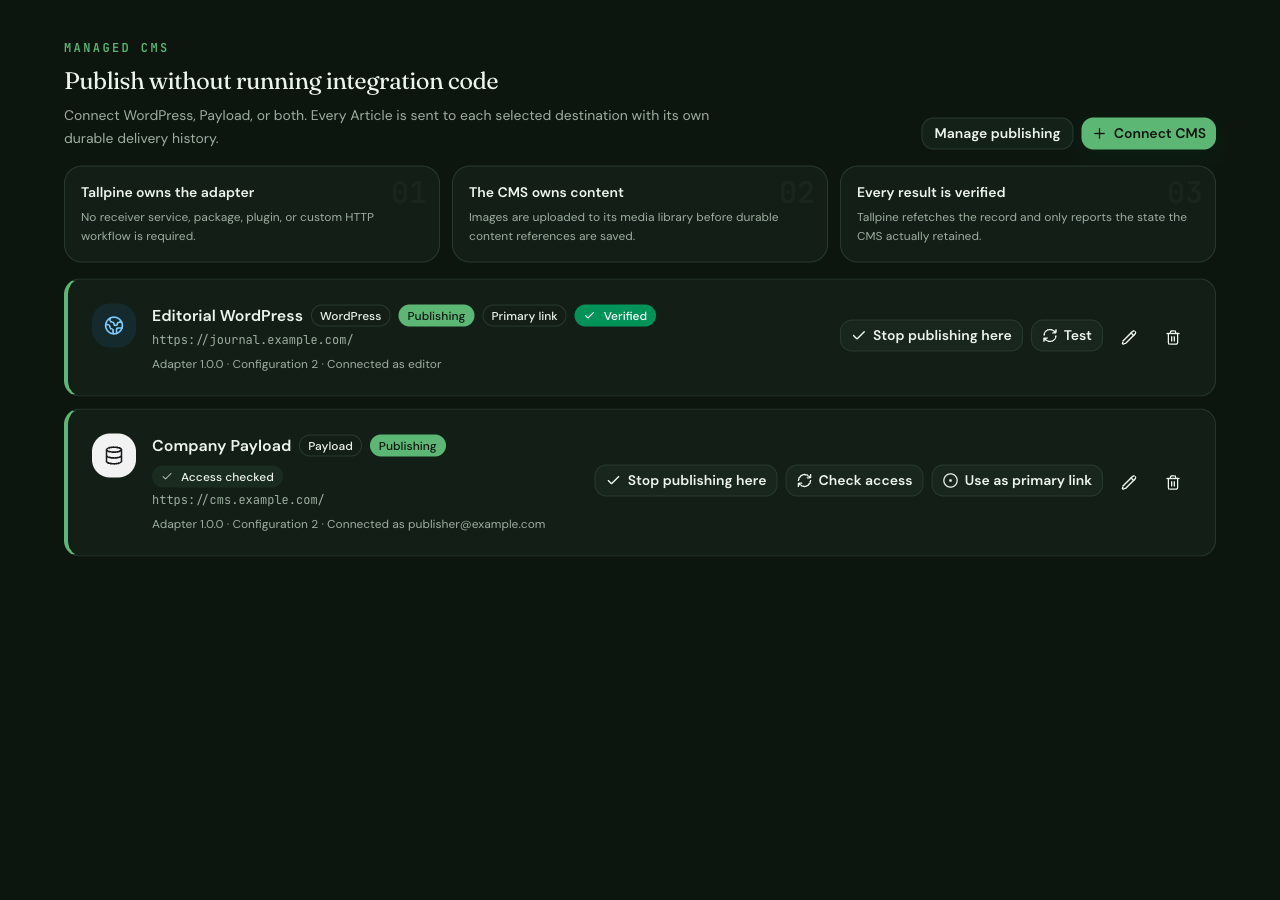
- Confirm the saved card shows Access checked and the expected Payload service email.
- Reload the Connections page and confirm the destination is still present.
- In Payload, confirm no Article or Image was created during setup and the service user's role and configured scope are unchanged.
What the First Delivery Proves
The connection access check is intentionally read-only. The first authorized delivery is the first time Tallpine can prove the mapped fields are writable, the upload collection accepts Image bytes, any configured tenant assignment is enforced, and Payload retains _status=published after a refetch.
That delivery creates or updates real CMS records and may make the Article public. Do not send placeholder content merely to test the mapping. Use an approved Article, or use a separate staging destination when you need write proof before production.
The Payload connection access is now checked. Continue in Publishing & Queue when you are ready to choose how future Articles should be delivered.
Troubleshooting
- The API key is rejected
- Confirm API-key access is enabled on the configured auth collection and that the key belongs to the dedicated user. A Payload response with no authenticated user is not a valid connection, even if the request itself returns successfully.
- An Article or upload collection cannot be reached
- Use collection slugs, not display labels. Check the CMS root URL and the service user's read access to both collections.
- A field mapping fails
- Compare the field with the deployed collection definition. Use one plain field identifier, clear unsupported optional fields, and confirm required fields are writable.
- The access check passes but the first delivery fails
- A read-only access check cannot exercise create and update hooks. Check the reported field, collection access, required Media metadata, draft configuration, tenant assignment, and destination upload limits. Fix the schema or mapping, then choose Check access before retrying delivery.
- The tenant check fails
- Recheck the user's current tenant membership and tenant record ID. Do not substitute an administrator key to bypass the restriction.
- The connection used to work
- Retest after changing a key, role, collection slug, field, domain, or Payload deployment. Rotate any key that may have been exposed.
For delivery recovery and support details, see Troubleshooting & Support.
Security Checklist
- Use a dedicated API-key user, never a personal administrator key.
- Grant only the collection actions Tallpine needs.
- Limit a multi-tenant user to one intended tenant.
- Keep the API key out of screenshots, logs, source control, and chat.
- Rotate the key immediately if it is exposed.
- Retest the connection after changing permissions, schema, credentials, or the CMS URL.