Publish a Static ZIP
Download portable Markdown, frontmatter, and Images for any static site without connecting a CMS.
ZIP is Tallpine's no-lock-in delivery path. It works with Astro, Next.js, Hugo, Eleventy, a custom Markdown build, or any workflow where you control the content and public asset folders. Tallpine creates the files; your repository and deploy process remain unchanged.
No Connection required: ZIP export uses no CMS credential and makes no remote publishing request. It also does not consume an Article; allowance was used when qualifying Article work started.
Before Your First Export
Find these two locations in your static-site repository:
- Content source: the folder where your build reads
.mdfiles. - Public Image source: the folder copied to your deployed site without changing the Image URL.
Also check which frontmatter names your template expects. Tallpine can include title, slug, excerpt, keywords, metaTitle, metaDescription, and publishedAt when those values exist. You can map or rename them in your importer if your site uses a different schema.
1. Choose the Image Path Prefix
The Image Path Prefix is the public URL written into each Markdown Image link. It is not a path on your laptop and it is not the content folder.
| Site setup | Markdown folder | Prefix | Copy exported Images to |
|---|---|---|---|
| Astro | src/content/blog/ | /assets/img/ | public/assets/img/ |
| Next.js with Markdown | Your configured content folder | /assets/img/ | public/assets/img/ |
| Hugo | content/posts/ | /assets/img/ | static/assets/img/ |
| Eleventy | Your input content folder | /images/blog/ | The passthrough folder that deploys as /images/blog/ |
The examples assume common defaults; use your repository's actual build configuration. Keep the leading and trailing slash in the prefix so a link is written as a root-relative public URL.
2. Publish and Download the ZIP
- Open a reviewed Draft Article.
- Choose Publish as ZIP. You can also select multiple Drafts and publish them as one archive.
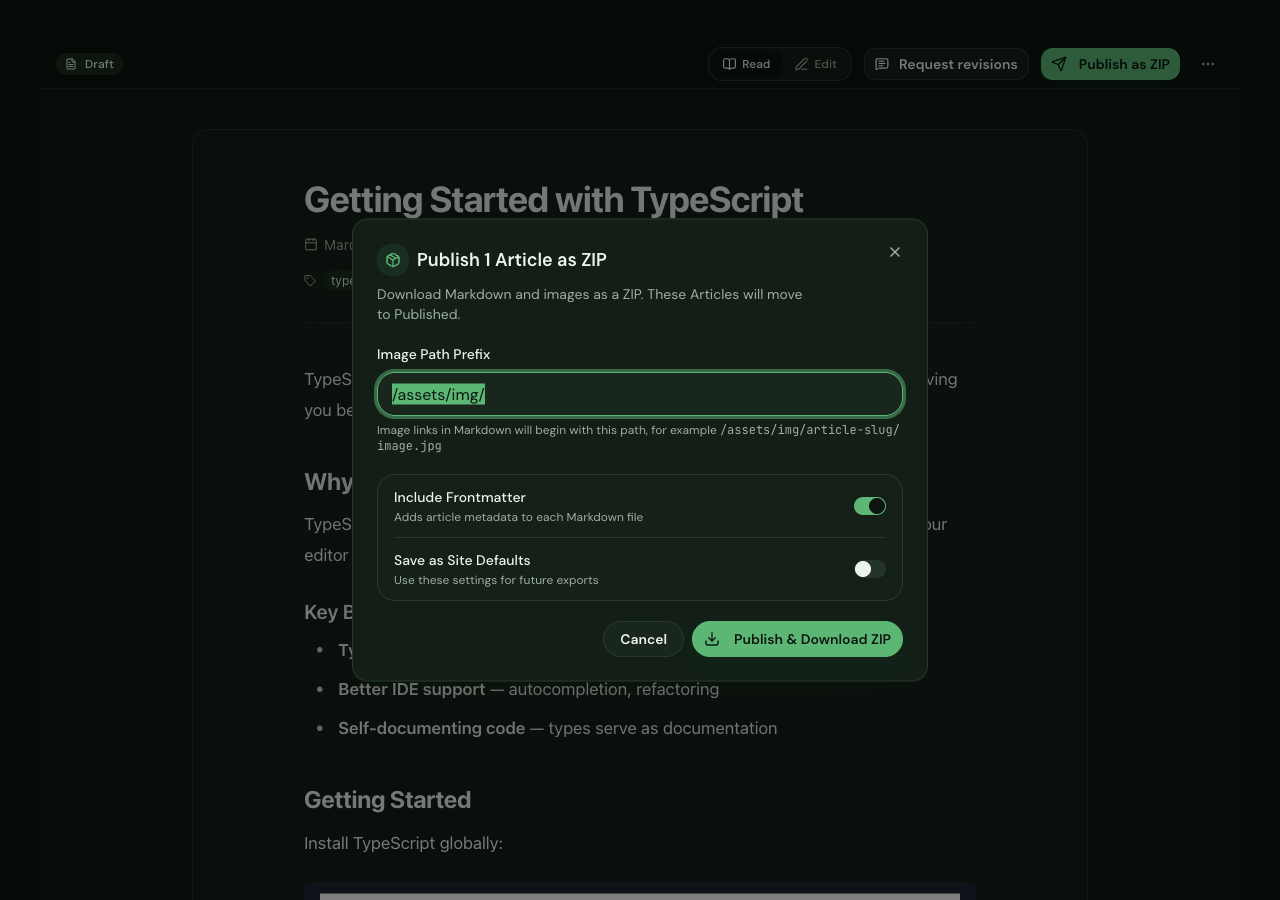
- Enter the public Image path prefix chosen for your site.
- Turn on Include Frontmatter when your content loader uses YAML metadata.
- Optionally turn on Save as Site Defaults to reuse the prefix and frontmatter choice next time.
- Choose Publish & Download ZIP and keep the dialog open while Tallpine prepares the archive.
3. Understand the Archive Layout
With the prefix /assets/img/, a one-Article export is shaped like this:
getting-started.zip
├── getting-started.md
└── img/
    └── getting-started/
        ├── image-1.webp
        └── image-2.png
The Markdown links point to /assets/img/getting-started/image-1.webp. Tallpine packages the final folder from the prefix (img/ in this example), so you would copy that exported folder into public/assets/ or the equivalent location. The deployed result must be /assets/img/….
A multi-Article export contains:
- One root-level Markdown file per selected Article.
- One Image subfolder per Article slug.
- An optional
export-warnings.txtwhen an Image could not be included or an export safety limit was reached.
4. Add the Files to Your Static Site
- Extract the ZIP into a temporary folder outside your repository and read
export-warnings.txtif present. - Copy each
.mdfile into the content source folder your build already reads. - Copy the exported Image folder into the parent path that produces the configured public prefix. Preserve the Article-slug subfolders.
- Adapt frontmatter names only if your content schema requires it. Keep the Article body and Image links unchanged unless you deliberately change the asset path too.
- Run the site's normal local build or preview. Open the Article and verify the title, date, metadata, every Image, and every link.
- Commit and deploy through your normal repository workflow, then check the public page and at least one Image URL.
Tallpine Published is not your deploy signal. It records that the portable archive was successfully prepared and downloaded. Your static-site build and hosting platform determine when the page becomes public.
5. Download a Fresh Copy Later
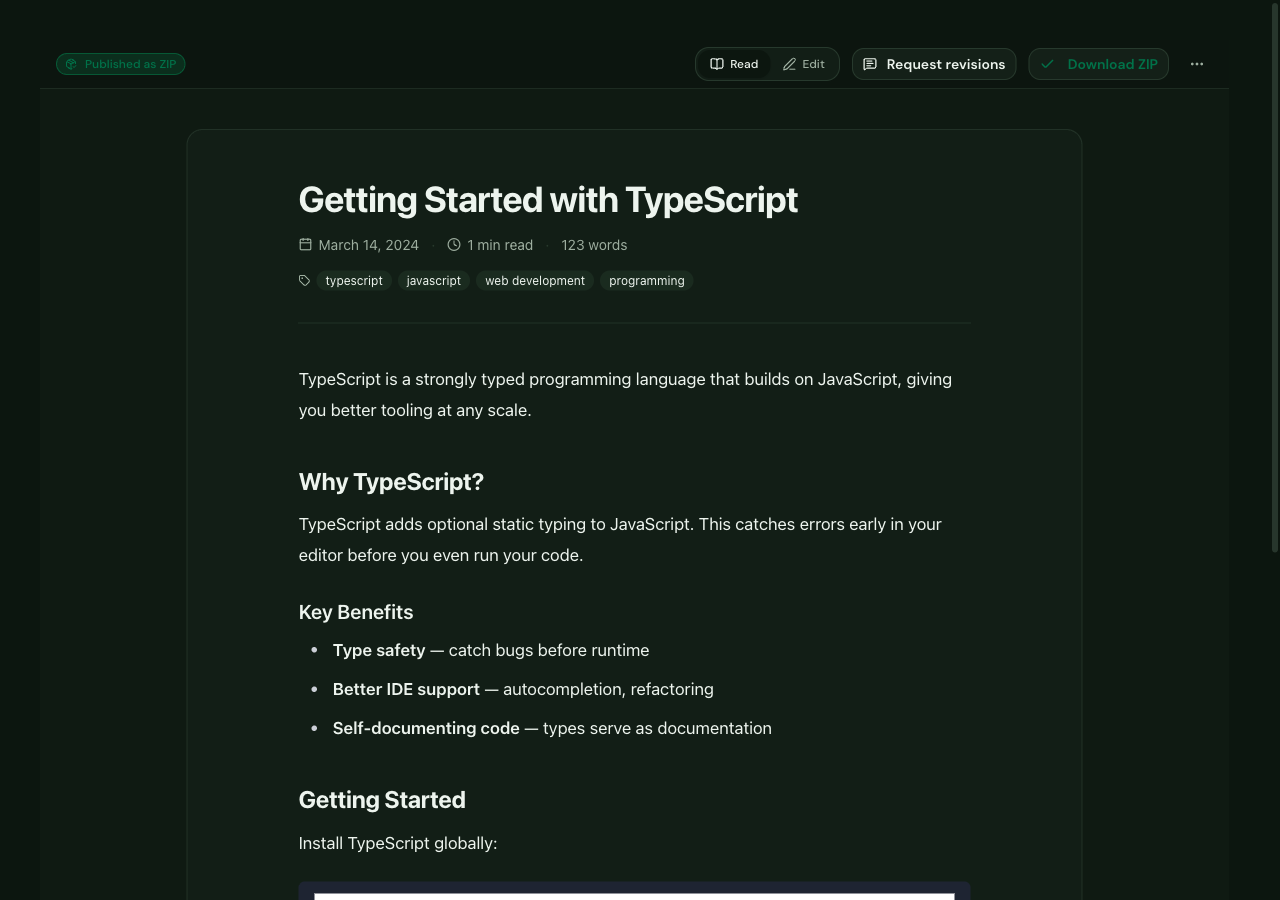
A ZIP-published Article shows Published as ZIP and a Download ZIP action. Downloading again packages the latest saved Article version and does not change its Published status or delivery history.
Troubleshooting
- The page builds, but Images return 404
- Compare one Markdown Image URL with the deployed public asset location. The prefix is a URL path; copy the exported Image folder under the parent that makes that exact URL exist.
- The content loader rejects frontmatter
- Map Tallpine's names to your content schema, add any site-required fields, or export without frontmatter and supply metadata through your existing import process.
- An expected Image is absent
- Read
export-warnings.txt. Keep the Article, repair the Image record or source, and create a fresh ZIP. Do not deploy a broken Image link. - The browser did not start a download
- Keep the export dialog open until preparation finishes, allow downloads for the Tallpine site, and retry once. If an export is already running, do not submit a duplicate.
- You need automatic daily delivery
- ZIP is a manual handoff. Connect WordPress or Payload CMS, then configure the managed queue in Publishing & Queue.
For general export recovery and support details, see Troubleshooting & Support.